Let me be straightforward with you. Thousands of workers search “e shram card download” every single day — and most end up on fake portals that either ask for money or collect their Aadhaar details illegally. That is the first thing you should know.
The e Shram card is issued free of cost by the Ministry of Labour & Employment, Government of India. It is downloaded free of cost. There is no SMS fee, no “processing charge,” and no agent required. If anyone asks you for money to download your e Shram UAN card — walk away.
Now, your UAN card (Universal Account Number card) is a 12-digit identity document that belongs to you permanently. Once you register on the official portal at eshram.gov.in, that card is yours for life. You can download it today, lose it tomorrow, and download it again next year — the same card, same number, no re-registration needed.
This guide gives you the exact, verified steps — the kind that actually work on the live portal.
Who Can Download the E Shram Card? (Quick Eligibility Check)
Before downloading, your registration must be complete. If you haven’t registered yet, you need to do that first. But if you’re here specifically to download an existing card, here’s a quick check: You can download your e Shram card if you previously registered on the official portal and received a 12-digit UAN number. You must have access to either your Aadhaar-linked mobile number or your UAN number with date of birth to pass the OTP verification.
If you never registered, the download button will not appear — because there is no card to download yet. In that case, head to register.eshram.gov.in and complete your self-registration first. The whole process takes under 15 minutes if your Aadhaar is mobile-linked.
E Shram Card Download: 4 Official Methods That Work in 2026
There is no single “correct” way. Which method works best for you depends on what information you have available right now. Here are all four genuine routes, explained plainly.
Method 1: Download E Shram Card Using Your Registered Mobile Number (Easiest for Most Workers)
This is the method most workers use because it only requires the phone number you registered with — no UAN number needed upfront.
- Step 1. Open your browser and go to the official portal: eshram.gov.in
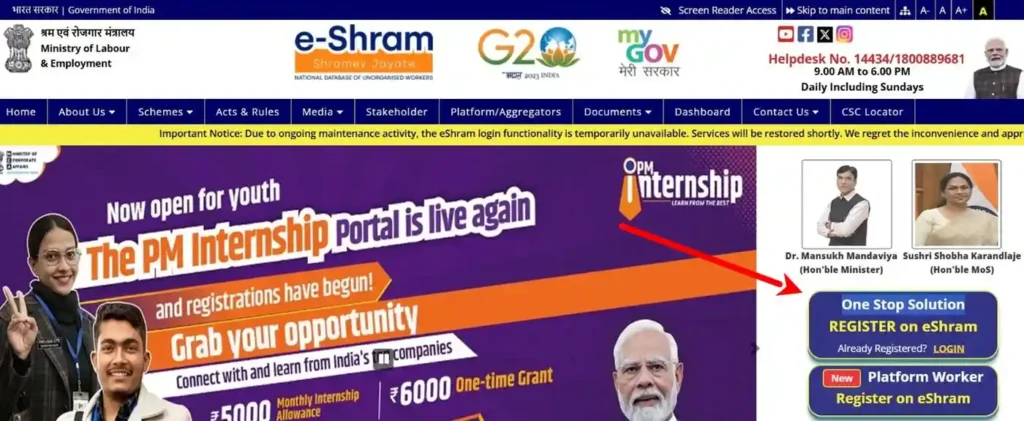
- Step 2. On the homepage, look for the button labeled “Already Registered? Login” or the “One Stop Solution” section. Click on Login.
- Step 3. A new page opens. Here, enter the mobile number linked to your Aadhaar card — this is the same number you used when you first registered on e Shram.
- Step 4. Type the captcha code exactly as shown on screen. These are sometimes tricky — if you can’t read it clearly, click the refresh icon to get a new one.
- Step 5. Click “Send OTP”. Within a few seconds, a 6-digit OTP will arrive on your registered mobile number via SMS.
- Step 6. Enter the OTP carefully. Click “Submit” or “Validate”.
- Step 7. You are now inside your e Shram dashboard. At the top of the screen, you will see a clearly marked button: “Download UAN Card”. Click it.
- Step 8. Your e Shram card will generate as a PDF file and download automatically to your device. Save it somewhere safe — your phone’s downloads folder, Google Drive, or WhatsApp it to yourself.
That’s it. No forms, no fees, no waiting.
Tip: If the OTP isn’t arriving, first check whether your inbox is full or if you’ve accidentally blocked “short-code SMS” in your settings. The portal also tends to be faster in the early morning (before 8 AM) when server load is low.
Method 2: Download E Shram Card by UAN Number (Best If You Know Your 12-Digit UAN)
If you already have your UAN number written somewhere — on an old printout, a WhatsApp message you sent yourself, or any previous download — this method is faster.
- Step 1. Go to eshram.gov.in and click on “One Stop Solution”.
- Step 2. Select “Login Using UAN” from the options displayed.
- Step 3. On the next screen, enter your 12-digit UAN number, your date of birth (in DD/MM/YYYY format), and the captcha code.
- Step 4. Click “Generate OTP”. The OTP goes to your Aadhaar-registered mobile.
- Step 5. Enter the OTP and click “Validate”.
- Step 6. Your profile dashboard appears. Click “Download UAN Card” at the top.
Your e Shram card PDF is ready to save.
Note: UAN stands for Universal Account Number. It is the 12-digit number printed on your card itself. This number never changes — not when you move states, not when you change jobs, not ever.
Method 3: Download E Shram Card via DigiLocker (For Permanent Digital Storage)
DigiLocker is the Government of India’s official document wallet. Once you link your e Shram card here, it stays permanently in your “Issued Documents” section and can be accessed at any time — even without internet, as a cached document.
- Step 1. Download the DigiLocker app from Google Play or Apple App Store, or visit digilocker.gov.in.
- Step 2. Log in using your Aadhaar number or mobile number.
- Step 3. In the search bar, type “Ministry of Labour” or “UAN Card”.
- Step 4. Select the e Shram / UAN Card option from the results.
- Step 5. Enter your Aadhaar number when prompted and verify with OTP.
- Step 6. Your UAN card will appear under “Issued Documents” and can be downloaded or shared from there anytime.
This method is particularly useful for workers who need to present the card as an official identity document — banks, Anganwadi centres, or government scheme enrollment offices accept DigiLocker documents as valid originals.
Method 4: Download E Shram Card via the UMANG App (Mobile-First Option)
The UMANG app (Unified Mobile Application for New-age Governance) is an all-in-one government app that hosts over 1,200 government services including the complete e Shram functionality.
- Step 1. Download the UMANG app from Google Play Store or Apple App Store.
- Step 2. Register or log in using your mobile number and MPIN.
- Step 3. In the search bar, type “e-Shram” or “e Shram One Stop Solution”.
- Step 4. Select the service and log in with your Aadhaar-linked mobile number.
- Step 5. Navigate to your profile and select “Download UAN Card”.
The card downloads directly to your phone. You can also check your payment status and update your profile from the same app without ever opening a browser.
What If You Can’t Receive the OTP? (Real Solutions)
This is the most common problem workers face, and it almost always has a fixable cause.
- Problem: Your mobile number is not linked to Aadhaar. This is the most common reason. The e Shram portal requires OTP verification via Aadhaar-registered mobile. If you changed your SIM or phone number after your original Aadhaar enrollment, the portal cannot reach you.
- Fix: Visit your nearest CSC (Common Service Centre) or Aadhaar Seva Kendra. They use biometric (fingerprint) verification to authenticate you without needing the OTP, and can simultaneously update your Aadhaar-linked mobile number for future use.
- Problem: OTP arrives but portal shows “Invalid OTP.” This usually happens because you waited too long. OTPs on the e Shram portal expire within 3–5 minutes.
- Fix: Do not copy-paste the OTP. Type it fresh immediately after it arrives. If it still fails, request a new OTP.
- Problem: OTP never arrives at all. Your SMS inbox might be full, or your network provider is blocking short-code messages.
- Fix: Delete old messages to free up inbox space. Go to your phone settings and check whether you’ve enabled “DND (Do Not Disturb)” mode for SMS — this sometimes blocks OTPs. If nothing works, try the DigiLocker route (Method 3 above) which uses its own Aadhaar verification system.
Also read complete guide on E Shram Card Check Balance.
What Your E Shram Card PDF Contains
Your downloaded UAN card is a one-page PDF document. Here is what is printed on it — knowing this helps you verify the card is correct before using it anywhere officially:
- Your full name as per Aadhaar records
- A photograph (pulled from UIDAI Aadhaar database during e-KYC)
- Your 12-digit Universal Account Number (UAN)
- Your date of birth
- Your current address
- Your primary occupation category (as entered during registration)
- A QR code that links to your live profile on the e Shram portal
- The Ministry of Labour & Employment seal and logo
- A note confirming your enrollment in PMSBY accidental insurance coverage
If your photo is blank on the PDF: This occasionally happens when the UIDAI server is slow to transfer image data. Your card is still 100% valid and usable. Wait 24–48 hours, then log in again, go to “Update Profile,” re-verify your Aadhaar e-KYC, and re-download. The photo usually appears on the next attempt.
E Shram Card Download After Name/Bank Update: Important Step Many Miss
If you recently updated your name, bank account, or address on the e Shram portal, you need to re-download your card — the old PDF you saved no longer reflects the current information in the system.
Whenever you make changes to your profile through the “Update Profile” section and verify them via OTP, return to the dashboard and click “Download UAN Card” again. The new PDF will contain your updated details. The QR code on the card always points to your live, current profile — so officials scanning it will see the latest data regardless — but having a current PDF is still good practice.
Can You Print the E Shram Card? Is a Printout Valid?
Yes, absolutely. A printed copy of the e Shram UAN card is accepted as a valid identity document for accessing government welfare schemes, enrolling in PMSBY insurance claims, PMMVY maternity benefits, PM-SYM pension applications, and state-level labor board registrations.
If you’re printing at a shop (cyber café), make sure to:
- Print in colour (the photograph and QR code are harder to verify in black and white)
- Print at 100% scale — do not shrink to fit; it must be full A4 or the card proportions may distort
- Laminate it if this will be your primary identity document — the card has no expiry, so a laminated printout lasts years
E Shram Card Download for CSC Operators: Helping Others Correctly
If you are a Common Service Centre (CSC) operator helping workers in your area download their cards, the correct approach is:
Never ask workers to share their Aadhaar OTP with you. The OTP goes to their personal registered mobile. They must type it themselves. Your role is to navigate to the correct portal, enter their mobile number or UAN, and let them enter the OTP on the keyboard — this is both legally correct and protects you from Aadhaar data misuse liability.
The official channel for CSC-assisted downloads is the same: eshram.gov.in — not any third-party site or state portal link.
Frequently Asked Questions
My e Shram card download is showing an error. What should I do?
First, clear your browser cache and try again in a different browser (Chrome or Firefox work best). If the issue persists, try accessing the portal early morning when server traffic is lowest. You can also call the national helpline at 14434 (toll-free, available 9 AM–6 PM, Monday to Sunday) for guided assistance.
Can I download my e Shram card on a mobile phone?
Yes. The eshram.gov.in portal is fully mobile-responsive. You can download the card directly through your phone’s browser, or use the UMANG app which is purpose-built for mobile users.
I forgot my UAN number. How do I find it?
Log in using your Aadhaar-linked mobile number (Method 1 above). Once inside your dashboard, your 12-digit UAN is displayed at the top of your profile. Note it down somewhere safe.
My co-worker received the payment but mine hasn’t come. I’ve downloaded my card. What next?
Download alone doesn’t trigger payments. Your bank account must be Aadhaar-seeded (linked to your Aadhaar) for DBT transfers to work. Visit your bank branch and ask them to complete “Aadhaar seeding” for your account. Also check that the IFSC code on your e Shram profile is still current — if your bank was recently merged with another, the IFSC may have changed.
How many times can I re-download the e Shram card?
Unlimited times. There is no limit on downloads. The card is permanent and always available on the portal as long as your registration is active.
The portal says “registration not found.” What does that mean?
This usually means the mobile number you entered does not match the one used during registration. Try your old mobile numbers if you’ve changed SIM cards. If you’re still stuck, contact the helpdesk at 14434 or email [email protected].
Official Contact & Helpdesk Details
National Toll-Free Helpline: 14434 or 1800-889-6811
Availability: 9:00 AM to 6:00 PM, Monday to Sunday (including holidays)
Languages: Hindi, English, Tamil, Telugu, Bengali, Marathi, and more
Email: [email protected]
Grievance Portal: gms.eshram.gov.in
Official Download Portal: eshram.gov.in
Quick Summary
| Method | What You Need | Best For |
|---|---|---|
| Login via Mobile Number | Aadhaar-registered mobile | Most workers |
| Login via UAN Number | 12-digit UAN + date of birth | Workers who remember UAN |
| DigiLocker | Aadhaar + DigiLocker account | Permanent digital copy |
| UMANG App | Mobile number | Smartphone users |